Task Block
The task block shows players something they need to do at a specific location. It does not contain any interactive elements itself but rather links to a location that may have other blocks (e.g., photo capture, quiz, video).
The task block is limited to the Task List navigation display and is used for scavenger hunt-style games.
The task is marked as complete when the linked location has all its blocks completed by the player.
How It Works
- Set the location group’s navigation display to “Task List”
- Add a Task block to each location in your game
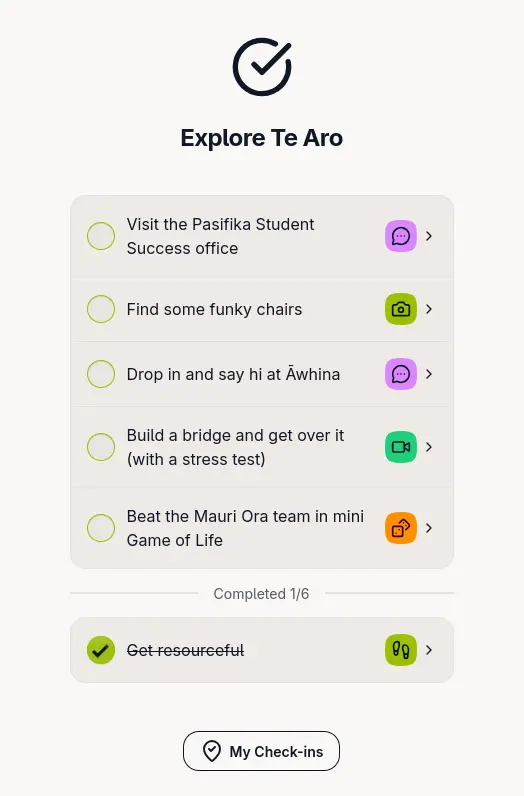
- Players see all tasks as a checklist
- When a player visits a location and completes all blocks, the task is marked complete
- Completed tasks show with a checkmark and move to the bottom of the list
Note: While the routing strategies dictate which tasks are available to players at any time, completed tasks remain visible in the checklist for reference unlike other navigation displays where completed locations are hidden.
Options
When creating a task block, you can configure:
- Task: The description of what players need to do (e.g., “Take a photo of the clock tower”, “Find the hidden statue”)
- Task Type: Optional icon to visually categorise the task. Options include:
- Photo, Video, Audio (media capture)
- Location, Journey (movement-based)
- Question, Discussion, Quiz (interaction)
- QR Code, NFC (scanning)
- Game (entertainment)
- Access Control: Whether the task is directly clickable or requires scanning a QR code/NFC tag to access
Access Control
By default, tasks are directly clickable in the checklist. Disable “Allow direct navigation” to require players to physically scan a QR code or NFC tag to access the task location. This is useful for:
- Ensuring players physically visit locations
- Creating treasure hunt experiences where clues lead to physical markers
- Preventing players from completing tasks remotely
Related
- Game Settings: Task List - How to configure the Task List navigation display
- Content Blocks - Overview of all available blocks